I haven't done much with Pinterest yet. My friend Cathy invited me to join. I fussed with it a bit. Then my sister-in-law Fawn started following me (pressure!). Then Drew Smith started following me (real pressure!). I haven't seen a lot written about Pinterest yet but I must admit it looks fun and interesting.
Then today, I happen upon a Twitter post with news from Pinterest. Apparently, some web providers don't want to be pinned to a Pinterest user's page. The deal with Pinterest is that you set up your own page and you pin webpages you like. Anyone who is following you can visit your page and see what you've pinned. That is unless the webpage has banned pinning. Here's the link that the Twitter poster provided to the article with details: http://llsocial.com/2012/02/pinterest-offering-code-to-block-pinning/.
Sunday, February 19, 2012


Playing with Camera in Tablet
 |
| My Garden |
Ha! You find pictures you've taken with the tablet under From Your Phone!
At last, I have a view finder I can handle. I'm not fussing with a tiny digital camera.
Problem is when you are outside the screen doesn't let you get a good look at what you are shooting. Still the picture is a nice one. The day here in Florida has been sunny and then over cast, threatening to rain. The more over cast the day is the easier it is to see picture composition. Going to graveyards may be an activity best done on over cast days both for the camera and heat here in Florida.
The next version of the Android operating system (Ice Cream), which I have yet to locate, is suppose to fix problems with the camera. I'm not sure what those problems might be. The camera is pretty easy to use. Uploading pictures using Blogger...well not so easy. I'm getting quirky things happening to me while doing this blog post...things that do not happen on my laptop. Still it might be my learning curve. The Galaxy Girls at RootsTech did note that they don't do their blog posts on tablets.
P.S. In the category of snide remarks, the man in my life observed, "For someone who kicked and screamed about buying that thing (the tablet), you sure are on it a lot." Since he paid for it, I just don't want to tell him I'm trying to justify the purchase because again I see no burning need to have one of these things.
Same thing for the hotspot he bought...nice to own but is it really necessary? I guess only time will tell.
P.P.S. I'm on my laptop now...big discovery...you cannot edit a published blog post on the tablet...you get no Update button.
On the plus side, if you press Ctrl + S on the tablet, you get a list of sites where you can share your blog post (the usual suspects...Facebook, Twitter, Google +, etc.). So now I'm wondering what other keyboard shortcuts did they build into the tablet docking station?
Saturday, February 18, 2012
Table It!...Part 5...Creating a Table with Census Returns
I originally started talking about tables because Michelle (a reader) likes to take census returns and present them to her clients in a table. Therefore, that's the example I'm going to use for creating a table. The table will include every census entry with the surname McKee in Randolph County, Illinois in 1850.
The first thing I have to do is create a plan for the table.


The first thing I have to do is create a plan for the table.
- Am I going to have entries only for the 1850 census or am I doing other census years?
If only 1850, you can be more artistic and place the title in the table.
If more, you will likely want to have a title that can be picked up in a Table of Contents (TOC). - Do I want the table title to appear in a TOC?
If yes, place the title of the table above the table and apply a Heading Style (probably a Heading 3).
If no, you can be more artistic and place the title in the table. - Do I want to include every column that appears in the census?
If yes, change the page orientation to landscape (wider than tall).
If no, you might be able to fit the table on a portrait page.
In addition, you can treat the table as a graphic and turn it so that it fits sides ways on a portrait page. We'll talk about this process in a later post. - Do you have enough skills to construct the table in the middle of your document?
If yes, go for it.
If no, open a new document. When you have the table you want, you can copy and paste it into your document.
Here's the table I constructed in a separate landscaped page with a Heading 3 title.

Here's the table I constructed in a separate landscaped page with a sidebar title (won't be in TOC).

The tables have a couple of problems.
- The first table breaks in the middle of a row in the table. That doesn't happen in the second table.
- The headings don't show on the second page.
These problems are easily fixed using menu options and table properties. However, first you need to reproduce the table. I'll take you through those steps in the next post, because there are a few new instructions (for example, changing page orientation so that you can construct the table).
So see you in the next table post...
New to this Blog?...Let me Explain What I've Been Up To...
After Pattie said something to me about the readings she was getting on the blog, I started watching the statistics. There's a lot more reading of this blog than there has been in the past.
Since I'm posting about several topics and interspersing MS Word table instructions, I thought you might need a bit of background on my blog postings. I'm a technical writer by profession, and as a result, a heavy user of MS Word. I keep seeing Word sessions in many of the conference schedules. They can be as short as one hour or sometimes longer. Learning everything you need to know about using Word in such a short period of time isn't easy.
A little more than a year ago, I started posting bits and pieces about using MS Word with particular emphasis on how a genealogist would use Word to do many tasks, including writing a book. Through the year I've covered creating a template from scratch, using styles, and lots of other tasks. My thinking was that if my readers learned a little bit a few times a week that at the end of the year they would be getting along with Word much better than they had in the past. Based on my email, a few meetings with blog readers, and the steady increase I've had in readership, I seem to be meeting my goal of making Word easier for people to use.
One additional note...I've endeavored to explain why things work in Word, how many functions in Word are connected to other functions, and why you might care to learn to use this function or that one. One of my problems with my own profession is that you get good instructions to do a task, but if you don't know why you would care to do the task, why would you bother to learn it? I try to give you real world applications for how a genealogist would use functions in MS Word.
So, if one of your ambitions is to produce a book using MS Word, please read the sections labeled Template. If you read the posts in order and complete the instructions, you'll find that you wind up with a 26 page template that is ready for execution...that is, you adding your personal text to produce a book.
Also notice that as posting became more complicated, I started numbering the parts so that they could be read in order. You see that happening right now with the use of tables.
So, if you're new to this blog and staying a while to read, welcome, and thank you for your time and attention. I hope you find it useful. If you have questions, post a comment or write to me at info@technology-tamers.com. I'll send you a link to a posting or do my best to answer your question.
Since I'm posting about several topics and interspersing MS Word table instructions, I thought you might need a bit of background on my blog postings. I'm a technical writer by profession, and as a result, a heavy user of MS Word. I keep seeing Word sessions in many of the conference schedules. They can be as short as one hour or sometimes longer. Learning everything you need to know about using Word in such a short period of time isn't easy.
A little more than a year ago, I started posting bits and pieces about using MS Word with particular emphasis on how a genealogist would use Word to do many tasks, including writing a book. Through the year I've covered creating a template from scratch, using styles, and lots of other tasks. My thinking was that if my readers learned a little bit a few times a week that at the end of the year they would be getting along with Word much better than they had in the past. Based on my email, a few meetings with blog readers, and the steady increase I've had in readership, I seem to be meeting my goal of making Word easier for people to use.
One additional note...I've endeavored to explain why things work in Word, how many functions in Word are connected to other functions, and why you might care to learn to use this function or that one. One of my problems with my own profession is that you get good instructions to do a task, but if you don't know why you would care to do the task, why would you bother to learn it? I try to give you real world applications for how a genealogist would use functions in MS Word.
So, if one of your ambitions is to produce a book using MS Word, please read the sections labeled Template. If you read the posts in order and complete the instructions, you'll find that you wind up with a 26 page template that is ready for execution...that is, you adding your personal text to produce a book.
Also notice that as posting became more complicated, I started numbering the parts so that they could be read in order. You see that happening right now with the use of tables.
So, if you're new to this blog and staying a while to read, welcome, and thank you for your time and attention. I hope you find it useful. If you have questions, post a comment or write to me at info@technology-tamers.com. I'll send you a link to a posting or do my best to answer your question.
Friday, February 17, 2012
Virus Protection on my oh so expensive Tablet
As I have said in previous posts, I got my ASUS tablet on the run just a few days before going to RootsTech. I should have asked more questions before I ran out of the store, clutching my purchase. As it is, I found out at RootsTech (Galaxy Girls) that surfing the web on a tablet is no different than surfing the web on a PC or laptop. Ya' gotta have virus protection.
So after throwing caution to the wind for a few weeks, I started looking at virus software. Because my ASUS is an Android device, I could find all sorts of free virus apps in the Android App Store. You don't get much of a description when you start looking at the apps. However, you get an eye full when you start reading the reviews, which are extreme. The app is either the best stuff you ever thought about downloading, or after downloading, the app turns the tablet into a paper weight...rendered unusable. Then you get the inevitable tales of what the person had to go thru to recover from the download. All in all, the talk will scare the bejesus out you. It certainly scared the bejesus out of me.
As a result, I decided to haul myself (and the ASUS) into Best Buy to see what they had to say. Well, $21.39 later, I'm the proud owner of Kaspersky Tablet Security. I can't say at this point if this was the best move or not. However, I figure that for this minimal sum, I'm in better safe than sorry territory. We'll see how having the app on the tablet affects it's performance. Virus software is notorious for slowing systems down. Perhaps the tablet won't even notice it's there.
So after throwing caution to the wind for a few weeks, I started looking at virus software. Because my ASUS is an Android device, I could find all sorts of free virus apps in the Android App Store. You don't get much of a description when you start looking at the apps. However, you get an eye full when you start reading the reviews, which are extreme. The app is either the best stuff you ever thought about downloading, or after downloading, the app turns the tablet into a paper weight...rendered unusable. Then you get the inevitable tales of what the person had to go thru to recover from the download. All in all, the talk will scare the bejesus out you. It certainly scared the bejesus out of me.
As a result, I decided to haul myself (and the ASUS) into Best Buy to see what they had to say. Well, $21.39 later, I'm the proud owner of Kaspersky Tablet Security. I can't say at this point if this was the best move or not. However, I figure that for this minimal sum, I'm in better safe than sorry territory. We'll see how having the app on the tablet affects it's performance. Virus software is notorious for slowing systems down. Perhaps the tablet won't even notice it's there.
Thursday, February 16, 2012
Mac Messenger...Hard Page Break
I had a reader of this blog (Nova) ask me a Mac-related question. I don't use a Mac. I'm a PC gal all the way. I've had my fingers on the keys of a Mac once for about 10 minutes.
Nova's question: How do you add a hard page break using a keyboard shortcut?
Seems Nova has the newest version of Word for Mac and Mac added the shortcut...but didn't provide details. I googled and according to what I was reading, it's the same as on a PC...Ctrl + Enter. Nova tried it and it didn't work.
So I emailed Pattie who emailed her sister Mary (a Mac user and avid Apple fan). Mary's advice was to press the Ctrl key and the Enter key on the number keypad.

So, if you're a Mac user who needs this solution, you have Nova to thank for asking the question and Mary for suggesting a solution. Me? I'm just the messenger.
P.S. Nova--Did I get the details right? If no, please post a comment with corrections!
Nova's question: How do you add a hard page break using a keyboard shortcut?
Seems Nova has the newest version of Word for Mac and Mac added the shortcut...but didn't provide details. I googled and according to what I was reading, it's the same as on a PC...Ctrl + Enter. Nova tried it and it didn't work.
So I emailed Pattie who emailed her sister Mary (a Mac user and avid Apple fan). Mary's advice was to press the Ctrl key and the Enter key on the number keypad.

Nova reports that this method works!
So, if you're a Mac user who needs this solution, you have Nova to thank for asking the question and Mary for suggesting a solution. Me? I'm just the messenger.
P.S. Nova--Did I get the details right? If no, please post a comment with corrections!
Gedcom Viewer on my oh so expensive Tablet
When I was at RootsTech in Salt Lake City, it was suggested by a presenter that a tablet or smart phone owner could use PDFs generated from genealogy software to successfully do research. I was dubious but I spent a morning in the hotel creating the PDFs, loaded them on to my tablet, and took off for the library.
Talk about a frustrating experience! Trying to use the PDFs was like dragging an anchor around behind me while trying to figure out where I needed to dive into library resources. I don't walk around remembering all of the family details for nearly 2,000 people in one database alone. You have to open and close lots of PDFs to find the info you need to be able to decide if a given library resource is what you need. With the PDFs, unless you have a great memory, they are completely useless.
I went poking around on the web today, and low and behold, there are gedcom viewer apps. I downloaded ezGED Viewer by Source Quest, Inc. The next step was to load a gedcom on to my tablet. I'm lucky enough to have picked a tablet that has USB ports (ASUS), which means I can just attach a wire and download the file from my laptop to the tablet...sorta like using a wire or adapter to download photos from a digital camera or a similar device.
When I opened the viewer, I had to pick a gedcom to display, and then select an icon: Individuals, Families, Reports, Sources, Database Info, or Change GED. The icon labels suggest the type of display you can expect to see and they are accurately labeled. The ezGED Viewer is a free download and very easy to use. If you check it out, you'll see that it's getting well deserved high marks from other users.
I've got to say that had I known enough to download this app while at RootsTech, I would have had a much easier (and more productive) session at the library, because you really can get at your information. In my defense, I had had the tablet less than a week when I went to RootsTech and I was still trying to integrate it into my life...Actually, I'm carrying it around with me everywhere still trying to integrate it into my life...And justify the outragous amount of money I spent for what has been heretofore a toy...an unnecessary toy!
The upshot of all of this...the ezGed Viewer has been the first thing that I've seen that might make having a tablet worth while and cost justifiable.
Talk about a frustrating experience! Trying to use the PDFs was like dragging an anchor around behind me while trying to figure out where I needed to dive into library resources. I don't walk around remembering all of the family details for nearly 2,000 people in one database alone. You have to open and close lots of PDFs to find the info you need to be able to decide if a given library resource is what you need. With the PDFs, unless you have a great memory, they are completely useless.
I went poking around on the web today, and low and behold, there are gedcom viewer apps. I downloaded ezGED Viewer by Source Quest, Inc. The next step was to load a gedcom on to my tablet. I'm lucky enough to have picked a tablet that has USB ports (ASUS), which means I can just attach a wire and download the file from my laptop to the tablet...sorta like using a wire or adapter to download photos from a digital camera or a similar device.
When I opened the viewer, I had to pick a gedcom to display, and then select an icon: Individuals, Families, Reports, Sources, Database Info, or Change GED. The icon labels suggest the type of display you can expect to see and they are accurately labeled. The ezGED Viewer is a free download and very easy to use. If you check it out, you'll see that it's getting well deserved high marks from other users.
I've got to say that had I known enough to download this app while at RootsTech, I would have had a much easier (and more productive) session at the library, because you really can get at your information. In my defense, I had had the tablet less than a week when I went to RootsTech and I was still trying to integrate it into my life...Actually, I'm carrying it around with me everywhere still trying to integrate it into my life...And justify the outragous amount of money I spent for what has been heretofore a toy...an unnecessary toy!
The upshot of all of this...the ezGed Viewer has been the first thing that I've seen that might make having a tablet worth while and cost justifiable.
Wednesday, February 15, 2012
Table It!...Part 4...Popup Menu
In this post, we are going to find all of the pieces you need to work with tables.
Popup Menu
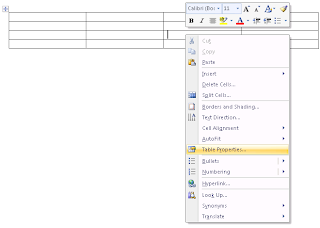
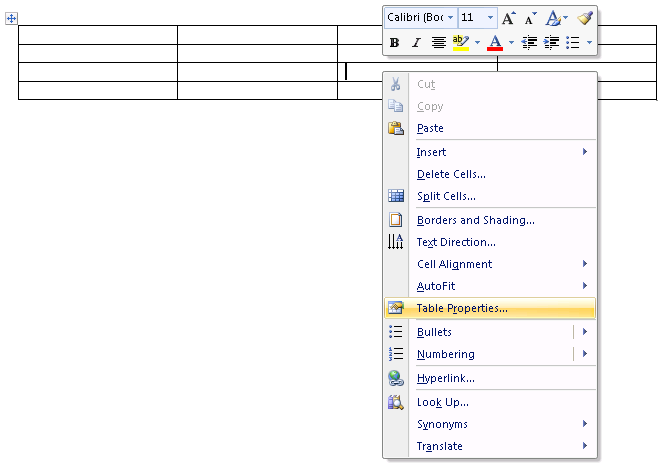
Right-click in any cell of a table and a popup menu appears. The selections on the menu are context sensitive; that is, MS Word is showing shortcuts related to tables. The same options appear on the table-related main menu along with additional options. The popup menu is just another way to complete table-related tasks...sometimes a faster way with less clicking. The version of Word governs the number of options you have. Word 2003 has fewer options on the popup menu, while Word 2010 has more options.
Word 2003

Word 2007


Popup Menu
Right-click in any cell of a table and a popup menu appears. The selections on the menu are context sensitive; that is, MS Word is showing shortcuts related to tables. The same options appear on the table-related main menu along with additional options. The popup menu is just another way to complete table-related tasks...sometimes a faster way with less clicking. The version of Word governs the number of options you have. Word 2003 has fewer options on the popup menu, while Word 2010 has more options.
Word 2003

Word 2007
Word 2010

Table Properties
Be sure to notice that in each popup, I've highlighted Table Properties. Click this option and the properties dialog appears. Between the main menu, the popup menu, and the table properties, you format tables. The method you use will end up being the one you find most convenient. I'll show you where it all is, but then it's up to you to pick your method(s).

For the most part, the Table Properties are the same regardless of the version of Word you are using.
Main Menu Ribbon
If you are using Word 2007 or 2010, be sure click in a table cell and look at the ribbon menu. You have lots more main menu options on the Design and Layout tabs than Word 2003 users. Word 2003 users have on the Table drop-down menu.
Now that you know where all of the pieces are we can begin to discuss what you can do in upcoming posts. So until my next post you might want to do some exploring and get accustomed to where all these pieces are located. Tour over...next post, we get to work.
Tuesday, February 14, 2012
Posting...I'll start again soon...
I've been working on the February 2012 issue of the Florida State Gene. Soc. newsletter. I'll try to do a post tomorrow night; however, it may be the weekend before the stream of emails stops. I'm late getting the newsletter out. February is always the worse one to get out. But at least it's complete and now I'm at the stage where I'm making corrections. So until the weekend...
Friday, February 10, 2012
Keyboard Shortcuts
I checked the stats on this blog. I noticed that lots of you have been reading about keyboard shortcuts. The shortcuts that I added were for Windows. The link below will take you to shortcuts for MS Word. After I finish the table series, I'll add notes for Word shortcuts that I actually use.
Of note...I'm a touch typist. I find using the keyboard shortcuts saves me lots of time and effort. The key to learning the shortcuts is to learn to use them one at a time. When you consistently use a shortcut (you've internalized it) then it's time to learn a new one. Over time they add up.
http://office.microsoft.com/en-us/word-help/keyboard-shortcuts-for-microsoft-word-HP010370109.aspx#BM5
Of note...I'm a touch typist. I find using the keyboard shortcuts saves me lots of time and effort. The key to learning the shortcuts is to learn to use them one at a time. When you consistently use a shortcut (you've internalized it) then it's time to learn a new one. Over time they add up.
http://office.microsoft.com/en-us/word-help/keyboard-shortcuts-for-microsoft-word-HP010370109.aspx#BM5
Subscribe to:
Posts (Atom)