Most people pick up the keyboard shortcut for switching between running programs quickly; that is, Alt + Tab. Lesser known is the keyboard combo that allows you switch between open tabs in a web browser.
When I'm digging for death/obituary/burial location type of information, I can have several tabs open in a browser as I move from site to site. (For a sample of this type of use, see Web Wobblings.) Truth be know, I can have different browsers going at once (Internet Explorer and Chrome...and sometimes Firefox too) each with several tabs opened. I can use Alt + Tab to move between browsers; however, I have to click tabs as I search for a webpage on the open tab I need. Or, if I want to move through the tabs in a browser quickly, I can use the keyboard combo Ctrl + Shift + Tab.
Showing posts with label WebPage. Show all posts
Showing posts with label WebPage. Show all posts
Monday, November 19, 2012


Wednesday, January 25, 2012
Hyperlinks Part 5 Add an Email Link
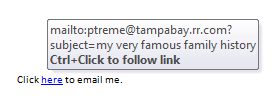
You can add an active hyperlink that launches your reader's email program and sets up an email with a subject line. Your need for this type of link will probably be limited. However, you might want to include this type of link in a PDF that is posted to a website so that your reader can easily contact you. When setting up this type of link, you are assuming that your reader has selected a default email program to launch when your reader selects an email link.
Add an Email Link
Change the Screen Tip
Add an Email Link
- Select text to create the link. For example, you might also want to add a line like: Click here to email me. Highlight the word here to add the link.
- Display the Insert Hyperlink dialog.
--Word 2007/2010: On the Insert menu, in the Links group, click Hyperlink.
--Word 2003: On the main menu, click Insert, and then click Hyperlink.
Or, right-click to display a pop-up menu, and then click Hyperlink. - In Link to, select E-mail Address. The fields to the right update.
- In Text to display, confirm that your selected text appears (here).
- In E-mail address, type your email address. Notice that Word adds the mailto: for you. It also adds the address to the Recently used email addresses box below.
- In Subject, add the subject you want to appear in the subject line of any email that is sent to you using the link.
- Click OK. Word adds the link to your text.

- Point your cursor at the link to show a popup with screen tip information.

Change the Screen Tip
- While adding the link, click the Screen Tip... button in the upper right of the Insert Hyperlink dialog. A dialog appears.
- In ScreenTip text, type the alternate text to display, and then click OK. After you save the link (click OK on the Insert Hyperlink dialog), point your cursor at the link and your alternate screen tip text appears. You can use these instructions to change the screen tip for any of the hyperlinks you've read about in this blog.
Monday, January 23, 2012
Hyperlinks Part 4 Adding a Link to a Place in a Document
If you read my last post, you know that I'm going to talk about adding a hyperlink to a place within the same document. Adding hyperlinks is a convenience for your reader. When you save a document as a PDF, the hyperlinks are saved as active links that your reader can use.
Insert a Hyperlink
Links in PDFs
More to come in later posts...see you then...
Insert a Hyperlink
- To make this work, you must have applied Heading styles to topic headings and/or added bookmarks to mid-topic locations. The destination must be defined before you can link to it.
- Locate the place in the text where you want to add the link...the origination...and highlight the text.
For example, if you've written an extensive description of the ship Helvetia on page 40 of your document (the destination), you would either apply a Heading style to the topic heading or create a mid-topic bookmark. Later, when you mention the Helvetia on page 120, you are going to want to select the word Helvetia (the origination) and link it to the description on page 40 (the destination). - Display the Insert Hyperlink dialog.
--Word 2007/2010: On the Insert menu, in the Links group, click Hyperlink.
--Word 2003: On the main menu, click Insert, and then click Hyperlink.
Or, right-click to display a pop-up menu, and then click Hyperlink.
- In Link to, click Place in This Document. The list of destinations in the box on the right updates to include places where you've applied a heading style or added a bookmark.
- Select a heading or bookmark, and then click OK. The text you selected is formatted as a hyperlink.

If you want to confirm that the link works, hold down the Ctrl key, and then click the link. Your document scrolls from the origination (the link) to the destination (the text with the heading style applied or the bookmark).
When you test your document, you are functioning as a reader of your document. After you execute the link, you'll note that you have no way to get back! Well, you have no obvious way back. Hold down the Alt key, and then click the left arrow key. The document scrolls back to the origination; that is, the place you were reading.
Links in PDFs
If you're reading in a PDF and you've turned on the thumbnails or bookmarks, the good news is that after you click the link, the PDF saves your place. The PDF shows the last thumbnail or bookmark as the last place you scrolled to; that is, where you clicked the link. Click the thumbnail or bookmark to return to where you were reading.
More to come in later posts...see you then...
Thursday, January 12, 2012
Hyperlinks Part 2...Linking from a document to a Web page
Let me set a scene. You've written a book. In that book, you've referenced the work of Mrs. Frank S. Torrens. As it so happens, Google has Mrs. Torrens' book loaded in Google Books...a web page location.
When you publish your book, you're going to produce it in PDF format, which your readers will be able to download after they've paid for it. Since your book will be a PDF, you want to insert an executable link to Mrs. Torrens' book so that your readers can see the reference first hand. To accomplish this task, you need to insert a hyperlink to a the Google web page in your Word document, which you will eventually PDF for publication.
Insert a Hyperlink to a Web Page

When you publish your book, you're going to produce it in PDF format, which your readers will be able to download after they've paid for it. Since your book will be a PDF, you want to insert an executable link to Mrs. Torrens' book so that your readers can see the reference first hand. To accomplish this task, you need to insert a hyperlink to a the Google web page in your Word document, which you will eventually PDF for publication.
Insert a Hyperlink to a Web Page
- On the Internet:
--Locate the Web page you want to have appear when your reader clicks the hyperlink.
--Write down the address (the http://webpage.com bit) or highlight the address and copy it to your pasteboard (Ctrl + C). - In Word, open the document you want to add the hyperlink to and locate the text you want to use as the hyperlink.
- Highlight the text you want to have formatted as a hyperlink. For example, I would highlight Mrs. Frank S. Torrens in running text.
- Open the Insert Hyperlink dialog.
In Word 2007/2010, click the Insert tab, and in the Links group, click Hyperlink.
In Word 2003, on the main menu, click the Insert tab, and then click Hyperlink.
Or, right-click to display a pop-up menu, and then click Hyperlink.

Click the dialog sample to see a larger version of it. - Notice that the text you highlighted appears in the Text to display field at the top of the dialog. When you finish adding the hyperlink, this text will be formatted as the hyperlink.
- Look at the options appearing down the left side of the dialog. The option Existing File or Web Page is selected by default and it happens to be the option we need.
- Locate the Address field at the bottom of the dialog.
- Type or paste (Ctrl + V) the Web page address you found in step 1.
- Click OK. Your document is updated with the hyperlink.
- Save your document, and then test the link (hold down the Ctrl key and click the blue underlined text (a.k.a. the hyperlink). The Web page should appear.


Click the page sample and look for the text that is blue and underlined.
There's lots more to do with this dialog. So stay tuned for the next installment of hyperlinks.
Friday, March 18, 2011
Web Wobblings
Have you clicked a link on a Web page to see another page, and then tried to click the Back button to no avail? You click the button and nothing happens. The developers who programmed the page you are on programmed it so that the Back button is disabled. Try double clicking the Back button to get back to where you were.
Have you ever wanted to display several pages from a list of links and skip all the flipping back and forth to work with various pages? For example, you just added the parents of eight children that you already have on Find A Grave, and you want to link the parents to the children's memorials. You're fumbling with going back and forth as you look up memorial numbers. Pattie had a suggestion for this problem that I've found to be most useful.
1. Look up the father's memorial, and right-click on the link. A pop-up menu appears.
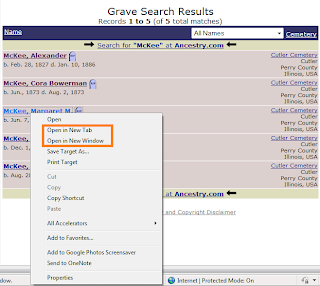
2. Select Open in New Tab.
3. Look up the mother's memorial, and right-click the link.
4. Select Open in New Tab.
5. Look at the tabs near the top of your browser page. Notice that you've got tabs for each of the parents. If you point your cursor at a tab, a pop-up with details appears.

6. Look up child one, and click the Edit link beside Family Links. The Family Links page appears.
7. Click the tab for the father, and copy the memorial number at the bottom of the page. (Highlight the memorial number, hold down the Ctrl key and type the letter C.)
8. Click the Find A Grave tab (memorial for child), and paste the father's memorial number in the Father field. (Hold down the Ctrl key, and type the letter V.)
9. Click Tab to move the cursor to the Mother field.
10. Repeat steps 7 and 8 to copy and paste the mother's memorial number.
11. Display the next child and repeat the process.
Displaying a link on an additional tab will work in almost any instance. In addition, notice that I've also circled Open in New Window. When you select this option, another instance of the browser opens and shows the contents of the linked page.
None of this is earth shattering; however, having options can prove to be convenient at the oddest of times. So tuck these suggestions away for a time when you need an option...
Have you ever wanted to display several pages from a list of links and skip all the flipping back and forth to work with various pages? For example, you just added the parents of eight children that you already have on Find A Grave, and you want to link the parents to the children's memorials. You're fumbling with going back and forth as you look up memorial numbers. Pattie had a suggestion for this problem that I've found to be most useful.
1. Look up the father's memorial, and right-click on the link. A pop-up menu appears.

2. Select Open in New Tab.
3. Look up the mother's memorial, and right-click the link.
4. Select Open in New Tab.
5. Look at the tabs near the top of your browser page. Notice that you've got tabs for each of the parents. If you point your cursor at a tab, a pop-up with details appears.

6. Look up child one, and click the Edit link beside Family Links. The Family Links page appears.
7. Click the tab for the father, and copy the memorial number at the bottom of the page. (Highlight the memorial number, hold down the Ctrl key and type the letter C.)
8. Click the Find A Grave tab (memorial for child), and paste the father's memorial number in the Father field. (Hold down the Ctrl key, and type the letter V.)
9. Click Tab to move the cursor to the Mother field.
10. Repeat steps 7 and 8 to copy and paste the mother's memorial number.
11. Display the next child and repeat the process.
Displaying a link on an additional tab will work in almost any instance. In addition, notice that I've also circled Open in New Window. When you select this option, another instance of the browser opens and shows the contents of the linked page.
None of this is earth shattering; however, having options can prove to be convenient at the oddest of times. So tuck these suggestions away for a time when you need an option...
Monday, January 31, 2011
Searching a Web Page
So, you're on a RootWeb text page. You know the kind I'm takin' about...one of those transcribed text pages that goes on and on. The last thing you want to do is read the entire page looking for your family name. The good news is that you don't have to read the page from stem to stern. You can use a keyboard shortcut to display a Find toolbar that you can use to complete an electronic search.
First, display a web page, and then hold down the Ctrl button, and type F. A Find toolbar appears above the web page.
Second, enter a search term in the Find field. The page usually scrolls to the first instance of the search term. Lots of times, all instances are highlighted.

This sample happens to be for Internet Explorer. The Explorer Find includes a few additional options that others might not offer.
Third, check the entry. If this isn't what you're looking for, click the Next link. In some systems, you click a down arrow beside the Find field.

This sample is from a Google Chrome page.
To close the Find toolbar, click the X.
For the most part, the Find tool will search text on a website. However, it will not search an image or graphic.
The Ctrl + F combo works in some form or fashion in every piece of software I use. So when in doubt, try Ctrl + F, and see what happens.
First, display a web page, and then hold down the Ctrl button, and type F. A Find toolbar appears above the web page.
Second, enter a search term in the Find field. The page usually scrolls to the first instance of the search term. Lots of times, all instances are highlighted.

This sample happens to be for Internet Explorer. The Explorer Find includes a few additional options that others might not offer.
Third, check the entry. If this isn't what you're looking for, click the Next link. In some systems, you click a down arrow beside the Find field.

This sample is from a Google Chrome page.
To close the Find toolbar, click the X.
For the most part, the Find tool will search text on a website. However, it will not search an image or graphic.
The Ctrl + F combo works in some form or fashion in every piece of software I use. So when in doubt, try Ctrl + F, and see what happens.
Subscribe to:
Posts (Atom)