Showing posts with label Style Description. Show all posts

Tuesday, June 14, 2011

Modify Style...Picking Some Paragraph-Related Selections

Sorry for the break. All of the pieces came together for the Florida State Genealogical Society newsletter (I'm the editor), and I needed to put it to bed. I just sent the print version to the printer and so it's back to talking about modifying styles.

In the last post, we were talking about the formatting line on the Modify Style dialog.
  • As a reminder, changes you make on the Modify Style dialog are global and work when you apply the style to text.
  • As a reminder, changes you make on any other dialog or menu are local and work only for selected text; that is, one instance.
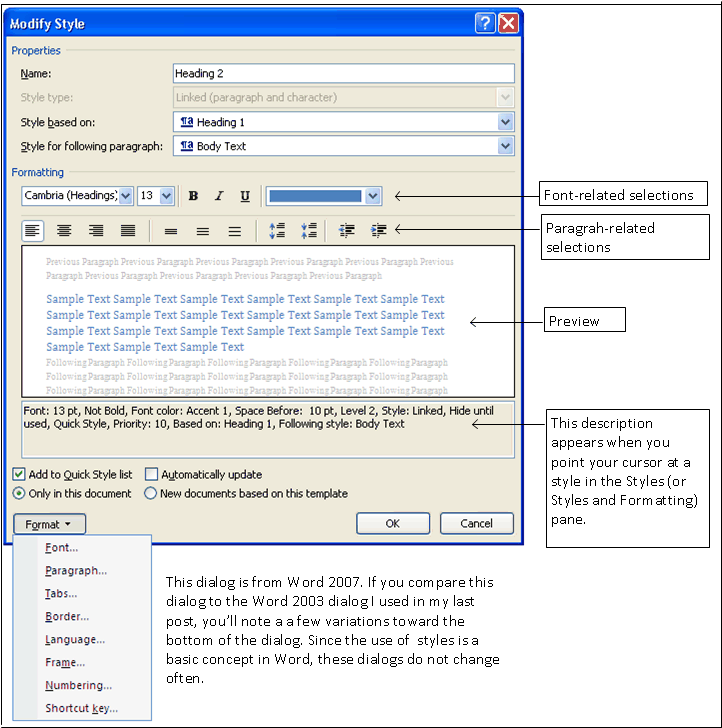
The line immediately below the formatting options are for paragraph formatting. You can make paragraph-related selections on this part of the dialog. Or, you can make the same changes on the Paragraph option dialog that appears when you click the Format button on the Modify Style.

Alignment
The first set of icons are for text alignment: Left, Center, Right, and Justified. For most styles (headers and body text), you're going to pick left alignment; the text feeds left to right. The center alignment is frequently used for graphics; therefore, if you were creating a style for your graphics, you might want to pick the center alignment. If you do happen to type text, the text centers itself between the right and left margin. The right alignment is frequently used for text in a header or footer; the text feeds right to left. The right alignment is also used to align columns of numbers; for example, the columns in an invoice. The justified alignment adjusts the spacing between words so that the right and left margins are perfect. While this might contribute to an aesthetic value for your document, justification makes text difficult to read because the spacing is no longer proportional and predictable between words.

Line Spacing
The second set of icons are for line spacing: Single Spacing, 1.5 Spacing, and Double Spacing. For the most part I use single spacing. Of note, if you are using Word 2007 or 2010, you'll find that if you look on the Paragraph dialog (click Format, and then Paragraph) that body text styles are set to Multiple 1.15. So your spacing between lines is .15 inches more than the normal single spacing.

Paragraph Spacing
The third set of icons are also for spacing; however, these icons can be used to increase or decrease the space between paragraphs. Adding space before and after paragraphs creates the white space you need to create a visual break between paragraphs. Many users just hit return twice and leave an empty line, which contributes to document bloat...something I've already talked about.

Indent from Left Margin
The fourth set of icons are used to create an indent from the left margin. Each time you click one of the icons, the left margin for the indent moves one half inch by default.

Preview and Description
Each change you make appears in the preview pane below. In addition, the description of the style appears below the Preview pane. This description changes as you make changes and this description appears when you point your cursor at a style in the Styles (or Styles and Formatting) pane when you are applying styles to text.

Next Post
In my next post, I'll talk about the options appearing at the bottom of the Modify Style dialog, and then we'll be moving to the options that appear when you click the Format button. Each of the Format options displays an additional dialog...some more interesting and useful than others.

In the meantime...for your amusement...Google updated Blogger and introduced...horrors!...new buttons that I'm having to learn to deal with. The interesting thing is that Google has picked icons that are a lot like the ones I use in MS Word and several other programs. So I can use my Word experience to make educated guesses on how to use the new toy that Google has given me.

Saturday, June 11, 2011

Modify Style...Formatting a Style

Click graphic to display, and then click Back button. 

This sample is the Modify Style dialog from Word 2007. You'll notice that this dialog is very similar to the dialog from Word 2003 from the previous post. All of the Modify Style dialogs are similar because setting up and using styles is a basic concept of Word. Word expects you to apply styles to every string of text you add to a document.

Formatting
The Formatting group in the middle of the dialog allows you to make font- and paragraph-related selections that apply each time you apply the style to text. In this post, we'll be talking about the font-related fields.

Font-Related Fields
Use these fields to pick a font, a font size, font attributes (bold, italic, underline), and color. As you make changes, check the Preview below to see how your changes will look.

Font
When selecting fonts for a long document try not to get too wild. Try to limit yourself to two fonts: one for headings and one for text.  As a general rule of thumb, Heading styles should be sans serif (no feet) while styles you would use in running text should be serif (with feet...similar to this font). Here's the theory. When you're reading dense text, the feet help you read faster because the feet help you group the letters easily into words.

Now all this advice goes out the window if you're designing styles for some sort of handout. You might want to use a third font for emphasis.

If you'd like more advice about design and layout, my favorite author is Robin Williams. She wrote (and has updated) the book: Non-Designer's Design Book. I like Williams' book because it offers suggestions that anyone can follow to produce more effective professional looking layouts.

Williams has very kindly placed some of her work in PDF format on the Web. She offers a free PDF download of what looks like an earlier version of her book. I didn't download it. If you decide to download it, the usual cautions apply. Remember to make sure that your virus software is up to date and that you have backups of your system.

Font Size
Font sizes are in points. One point is equal to 1/72 of an inch.

Text is usually 9, 10, or 11 points. If you know your audience is visually impaired, you might go larger...perhaps 12 points. If you plan to print the document, you need to consider font size because the larger the size, the more paper you'll use. I'm not kidding about eating up paper with font size.

Headings are usually 12 points and larger. We'll look at doing some additional things to headers that make them stand out in running text. So again, don't get too carried away with trying to make the font too large.

Font and font size is one instance where applying styles to text comes in handy. If you start out with 9 point Times New Roman and you want to change it to 11 point Garamond, you change the style and the change cascades throughout your document, changing each place where the style was applied. When you change a style, you need to recheck page breaks if you've added any (Ctrl + Enter). The same holds true for heading styles, which you are more likely to change after you've seen several pages of your document. If you've applied styles to each text string in your document, you always have the option of making changes...or changing it back if you decide you don't like the change you made.

Attributes and Color
Attributes (bold, italic, and underline) and color are pretty self explanatory.

The color drop-down has a More Colors option. Click it to display the color definition tabs. The colors on the Standard tab are Web-safe colors (important on Web pages). The Custom tab has fields that allows you to enter red, green, and blue color formulas...numbers that when combined define a color for your text.

Again, you have to consider if you are going to a printed document. If yes, you may want to stick with black and gray.

Color is another place where having applied styles matters. When I work on a newsletter, I add all the color I want to the headers, text, and so forth. I PDF the in full living color version for posting on the Web. Then, I save a copy of the newsletter, and alter the styles to black, gray, and white text on a black or gray background. This version is the print version.

As you can see, applying styles gives you options...lots of interesting options.

In my next post...
I'll pick up with the paragraph-related selections.